 |
|
|
|
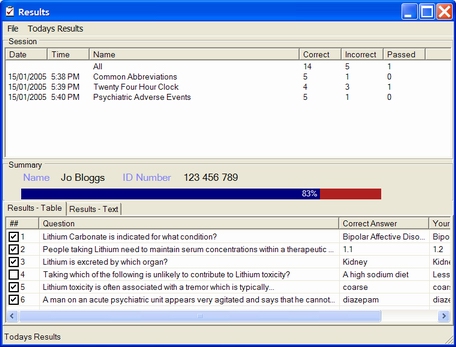
The results screen shows results for a given session by default. The tests undertaken appear in a list at the top of the screen with the number of correct, incorrect, and questions passed displayed. Select a test from this box and the percentage correct and login details (if provided) will be shown in the summary box and the questions displayed as a table or in a text box.
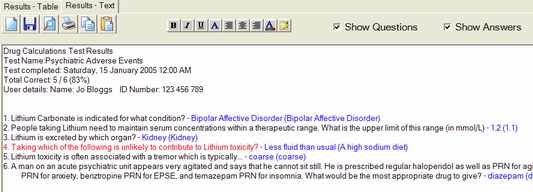
Click on the "Results - Text" tab to view the results in a text box. These can be edited, saved, copied, formatted and printed just like in a word processor. See: Using text editing tools
Select whether or not to display the correct question
Select whether or not to display the correct answers
If a log file has been specified in the default option file a button will appear in the menu bar to allow viewing of saved results.
To open a log file saved previously (either moved, renamed or saved in a customised test), select open from the file menu and browse for the file. The current log file may also be saved by selecting "Save" from the file menu.
 Select
a test session from the list
Select
a test session from the list