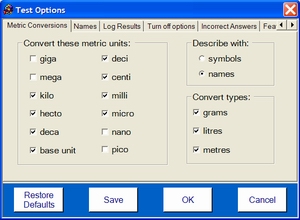
The test options window can be accessed from the main menu, test window. Some options may also be selected in the test creator. Choose the option tab at the top of the screen.
Click this button to return the options to the default state on installation.
Click the save button so that the selected options are kept next time the software is loaded. The file name for the options file (if one is saved) is "DrugCalcsOptions.dat". It is stored in the application directory. If the option "Turn off options" is selected then this file will need to be deleted to restore default options.
This will keep the selected options but will not save them
This will close the options window and restore options to those selected before the window was opened.
Select the units which are used to generate metric conversions. The most commonly used units in drug calculations are milli, micro, and the base unit. However, it is good practice to learn about converting other units.
Dosages and units can be described with symbols or abbreviations e.g. mg or by name e.g. milligram.
The usual conversion types needed for drug calculations are weights and volumes. However, lengths may also be chosen. This option allows you to choose the base unit.
Trade names may vary from country to country. This option allows you to select either generic, trade names or both for use in generating test questions.
Results can be saved in a log file. The extension of these files should be "*.log". If you just enter the name of a file e.g. "testresults.log" it will be saved in the directory where the program executable is stored. You can see where this is by looking at the directories option. Alternatively you may choose another place for the log file to be stored.
If the saved option file is moved to another computer which cannot access this directory an error will occur.
You may open the log file in the Results window which is accessible from the main menu.
If the software is used a lot then it may get very large in size, so it would be useful to delete it from time to time.
N.B. Customised tests may override this option and save results for that test in a separate log file.
If this option is selected a summary of results is displayed when the test is completed.
This is a radical option. If you are satisfied with the current configuration of Drug Calculations and you do not want users to access and change options, the databases or the test editor facility then select this option. Once the options are saved it may only be undone by deleting the options file which is found in the application directory.
The options available are:
See: Help Prompts
This option allows a user to 'pass' on a question by not answering i.e. by clicking the answer button when the answer field is blank. This cannot be done for multi-choice questions.
Select the number of questions needed to be answered correctly before moving up a level of question. This may be overridden by selecting random (clicking the checkbox).
These set of options allow you to turn on and off some of the features of Drug Calculations. Most of these are fun and make for a more interesting practice environment. However, some people may prefer a more austere or business like environment.
This is a mock prescription pad that is generated for tablet and fluid dosages.
This shows a bottle with the stock drug name and dosage during tablet dosage questions.
This shows the number of questions answered correctly or incorrectly during the test.
The calculator button in the test window may be turned on and off. This opens whatever system calculator is installed on the computer.
The "Show me" button which allows the user to pass a question and go straight to the solution in the test window may be turned on or off.
The games option may be turned off by clicking this option
This tab displays the application directory (where the option file is stored). By default, Drug Calculations looks in this directory to see if there are any user created tests to display. However, an alternative directory may be selected and Drug Calculations will also look in that directory for tests to display on the main menu.